Congratulations. You're officially in the Academy.
Thank you for trusting me with this. Start with the video below, then work through this guide in order and you will be fully set up and learning.
Watch this first
This walkthrough shows you how to get to all the content and resources that came with your purchase. Watch it, then use the rest of this guide to get set up.
Two updates since this was recorded. Skip the part about sending us your TradingView username, because Lexi's indicators are public now (add them here). Skip booking a 1-on-1 too, and come to one of the group onboarding calls instead.
Prefer to read along? Open the original Onboarding 101 doc from your coaches.
Get into Discord and your coursework
Go to your Whop screen, the same place you paid for your membership, and log in. Your Discord link sits on the left side of your screen. Use that link to upgrade your Discord so it includes every STA channel.
Whop is also where your STA Coursework lives. That link sits just below the Discord link.
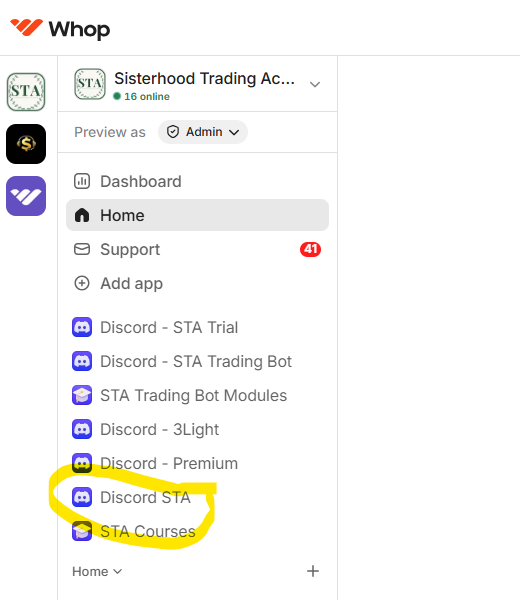
Come to an onboarding call
We run an onboarding call twice a week. You only need to come to one, so pick whichever time fits your week.
So you don't forget: open Events in the STA Discord, find the onboarding session, and mark yourself interested. Discord will remind you before it starts. You can also let us know you're coming in the #onboarding channel.
Set up TradingView
Sign up for an account at tradingview.com. You need the ESSENTIAL plan at minimum, plus the CME live data add-on on that subscription, which runs about $7. If you already have a broker connected, you can skip the CME add-on.
Add Lexi's four indicators
Make sure you are logged in to TradingView, then open each of these four links:
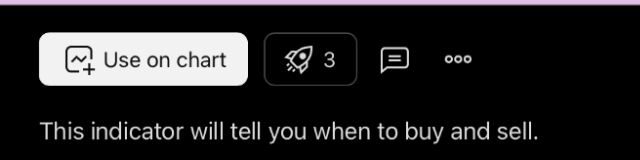
On each page, click the white "Use on chart" button under the chart. That adds the indicator to your TradingView chart. Do it for all four.
They will now show in your list of indicators, and you can toggle each one on and off. You don't need to look in the "Invite-only" section. These indicators went public after TradingView changed how invite-only scripts work.
Can't get one to show up? Send a support message through Whop and we will sort it out.
Match your chart to the STA format
Once your four indicators are on your chart, set it up the way we all run it. Working from the same format means every call, every screenshot, and every setup you see in the Discord will look like your screen.
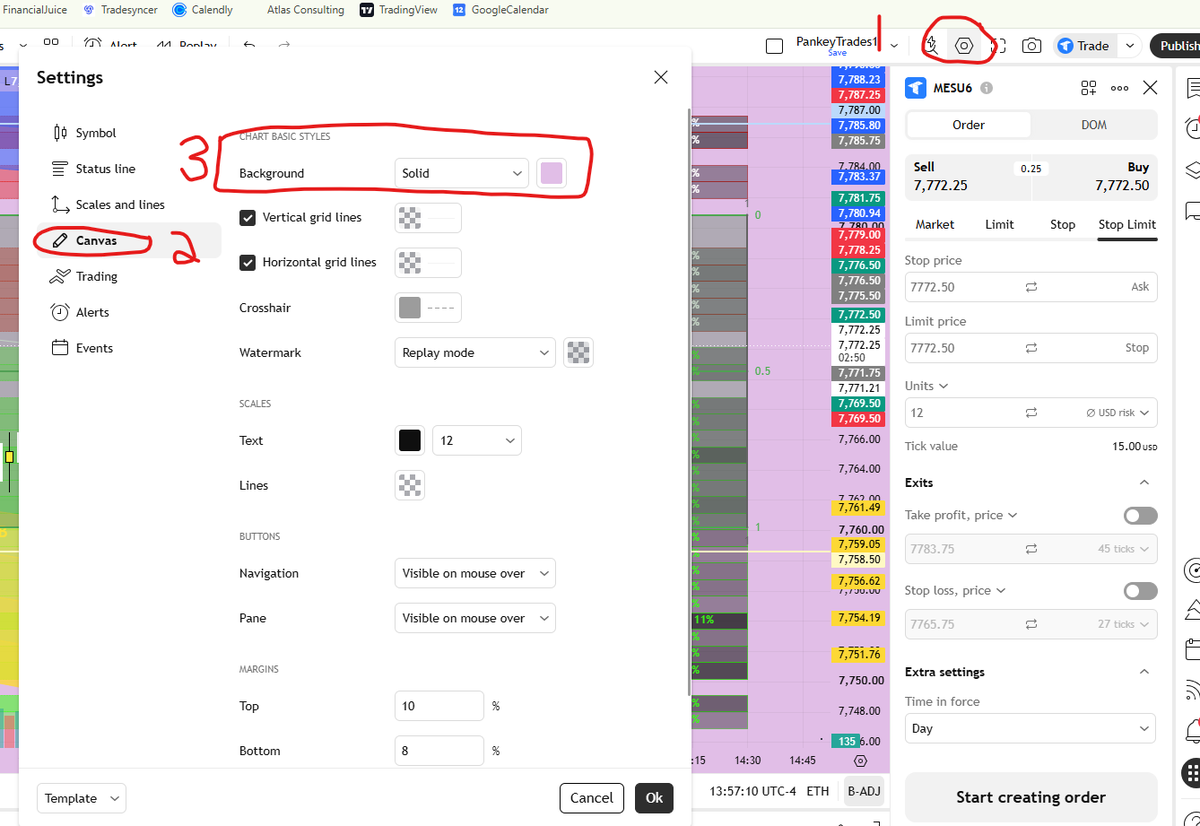
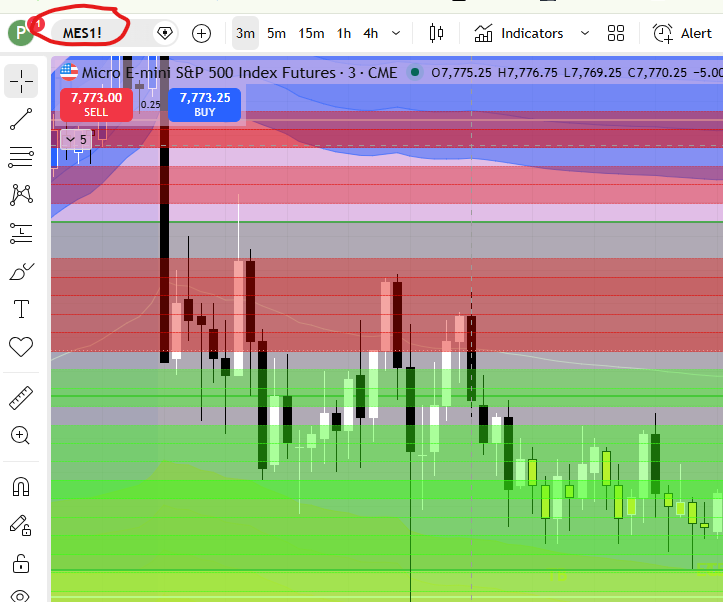
Open the chart settings gear, go to Canvas, and set your background to match the format below. This is for visibility, so the lights read clearly against the candles.
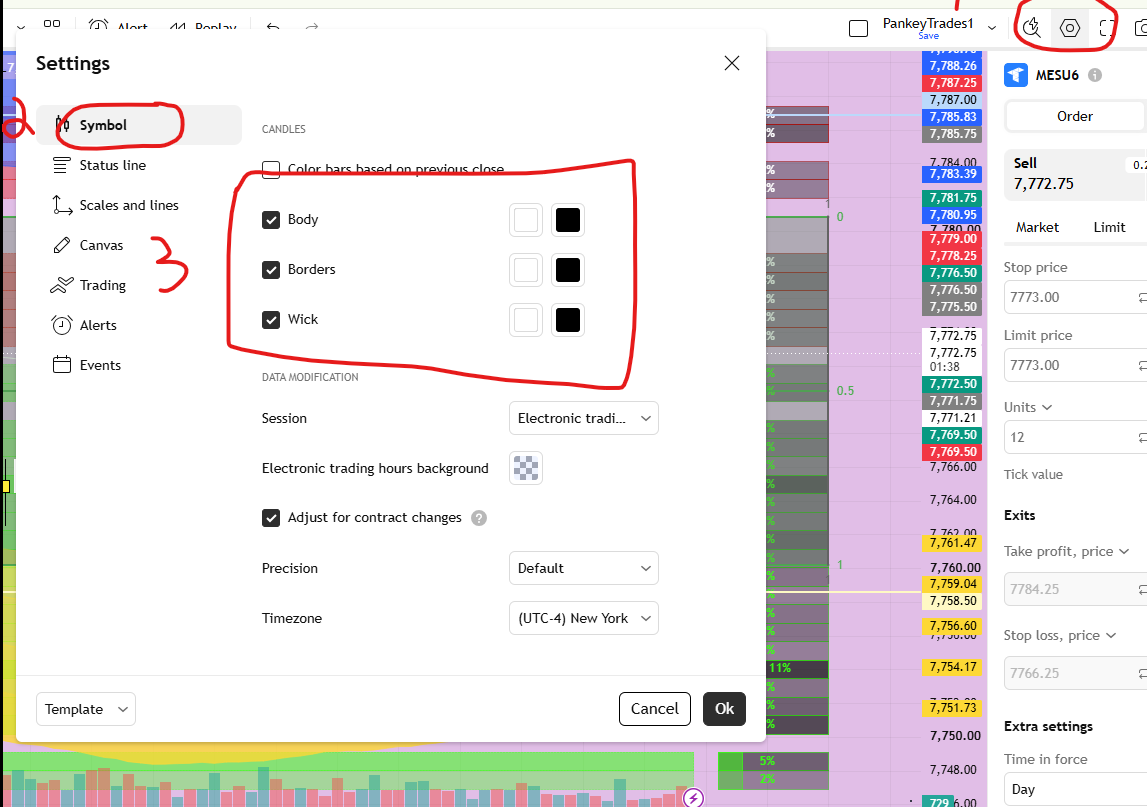
In the same settings panel, go to Symbol and match your candle body, borders, and wick settings to the format below.
Check the symbol in the top left of your chart. It needs to read MES1!, the Micro E-mini S&P 500 futures contract.
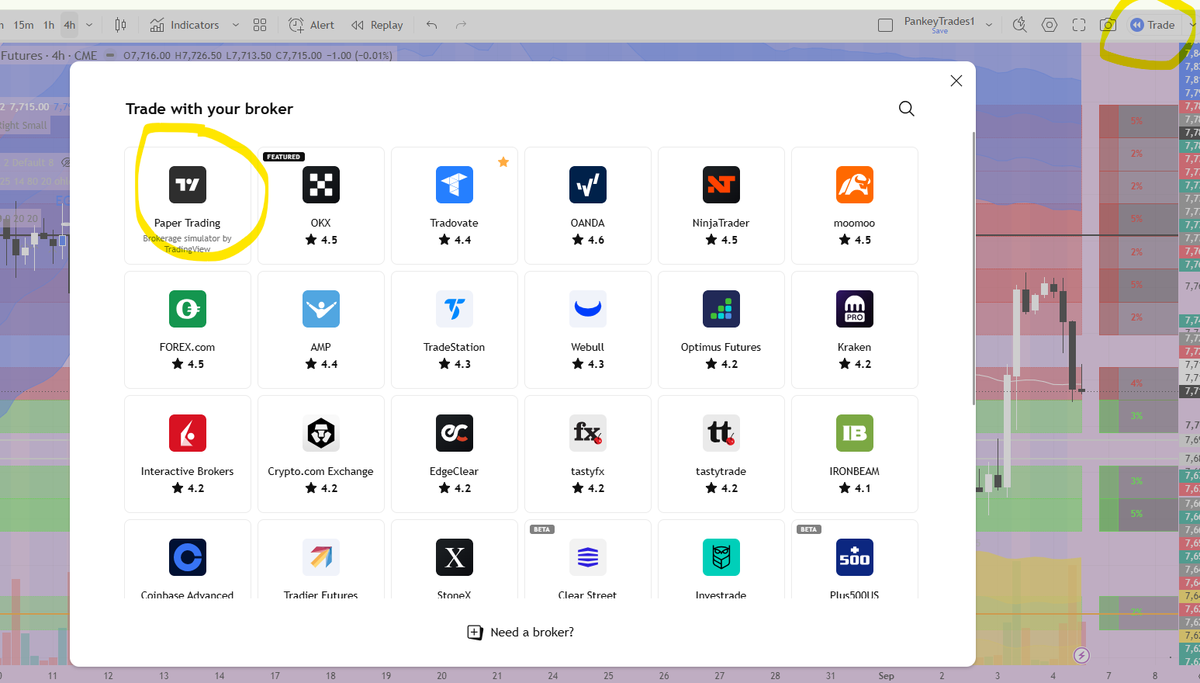
TradingView has paper trading built in, and it is where you will place your practice orders. Click the "Trade" button in the upper right, then select "Paper Trading."
Set up your trade journal
Pick a way to journal your trades before you take your first one. Any of these work, so choose the one you will actually keep up with:
- TradeZella, around $49 a month
- Google Docs or Word
- Excel or Google Sheets
Journal a few specific things for every single trade, including the paper ones. Follow the journaling template in the training folder. In TradeZella you can customize the notes section to include those items, or you can copy and paste the prompts for each trade into your doc.
Open the journaling training folder. It has a training call on journaling, sample journal templates, and a fuller breakdown of your options.
Get active in the Discord
You get to the Discord through your Whop account by selecting the STA Discord on the left side of your screen. Once you are in, here is how to use it:
- ✓Post your introduction. Say hello so we know who you are.
- ✓Check the weekly schedule and plan to join live trainings and live trades. Even as a beginner, these sessions help.
- ✓Live trading channels run on the schedule, and sometimes spontaneously. An announcement gets posted when they do.
- ✓Live training happens in lexi-group-calls, amanda-group-calls, and lola-group-calls. We post a Google Meet link about 10 minutes before each call starts, and recordings always go up afterward if you cannot make it live.
- ✓trading-chat is where most of the interaction happens. Post your questions and your setups there when you want eyes on them.
- ✓The presentations channel is worth a browse for past call decks. Your course videos live in your STA Coursework on Whop.
- ✓Send a DM to a member or a coach using the little Discord symbol in the far upper right.
Your first two weeks
Give yourself these four things to hit in your first two weeks:
- ✓Watch all the course videos. They are in your STA Coursework on Whop, linked just below the Discord link in your sidebar.
- ✓Attend at least one or two group calls. Times are posted in the weekly-schedule channel in Discord.
- ✓Attend at least one or two live trade sessions. Check the weekly-schedule channel.
- ✓Start taking paper trades, and journal every one of them. This is where you learn the most.
Paper trading and your 100 trades
You can paper trade two ways. Forward testing means trading the live market as it moves. Backtesting means using the Replay function inside TradingView to work through past sessions. Both count.
The most important part is logging every trade. Your journal is how you prove to yourself that you are ready to move to live trading, and it is the fastest way to see your own patterns.
For a full walkthrough, watch the call named "Backtesting 101" in the Amanda Group Call Recordings folder on Google Drive.
- Start by validating the entries in this doc, then paper trade them.
- Copy and save this checklist so you have a repeatable way to evaluate the chart for entries as you back and forward test.
So glad you're here. Lexi